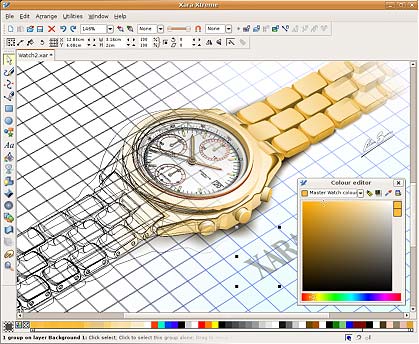
This document describes and illustrates the Xara X user interface. Our goal is to create an exact copy, or near exact copy of this as possible on all three platforms. Why is this important?

a) It provides an instantly familiar experience to the hundreds of thousands of Windows users of Xara and its predecessors such as CorelXARA, who might be considering moving to alternative platforms.
b) It's going to be much quicker re-implementing existing look and feel rather than inventing new UI
c) It means all existing support material can be used, such as manuals, help, tutorials and movies. We cannot stress enough how much work would be required to re-do all this for a different look. These are, of course, necessary in order to help new users get up to speed and increase the usability of the product.

So, as fits our general goal, the first aim is to re-create a 'finished' Xara Xtreme-alike product on Linux and Mac. Then we can move forward and improve and enhance this UI (there are lots of ways it can be improved of course)


Platform specific themes

Having said the above it is vitally important that our application have a native look and feel for all three platforms. We believe this is quite possible while at the same time broadly sticking to our current UI. e.g. on the Mac we'd expect window, sliders, scroll bars and dialogs to take on the native Mac aqua look. Docked toolbars around the parent window are also unlikely to fit within the Mac UI traditions, but that doesn't stop us having toolbars that are very Mac-like and also consistent with our existing UI (we hope).

The Xara UI is nothing particularly complicated and should not be difficult to re-create with a suitably comprehensive widget library. This is the main document window under Windows XP silver theme, at 1:1 actual size.


Icons

All our icons are 32bpp alpha channel PNG images that have fours possible states: Normal, mouse-over, selected and disabled (greyed). All tools have a tooltip that appears if you hover over the icon for a second or two (you can see the tooltip showing on the Transparency tool Infobar below - unfortunately the screen capture didn't capture the mouse pointer).

In the future it would be nice to use our own vector rendering to create resolution independent icons that can be scaled to any size. (We have been using vector scaleable UI on other products for about 8 years or more, but just never got around to it on Xara X). However this is not an immediate goal.


Tool Selection

All our buttons highlight as you mouse-over them. We're happy and expect that this be done in a system specific way. In Windows we increase the saturation of the tool icon slightly, as well as have system highlighting of the button (under Windows XP we do not use the standard system tool highlighting - we should.) Another hint is that the mouse pointer changes depending on the selected tool - and we use a lot of context sensitive mouse-pointer changing to provide feedback about what the mouse is over. So it's necessary that we can customize the mouse-pointer.


Selected tool

It's been a tradition for 15 years that the selected tool (only the main tool on the left toolbar) be shown highlighted with a yellow background. This is to doubly-emphasize the currently selected tool - as this modal aspect of the UI is core. User must be able to see at a glance (ideally not even glancing but see out of the corner of their eye) which tool and thus which mode the program is in.


InfoBar

When you select one of the main tools, the InfoBar changes to show all the control relevant to that too. As described above the compact nature of the InfoBar is a key benefit of our UI and responsible for the minimization of screen clutter while at the same time providing instant direct numeric control over a wide range of features. So in operation there are very few floating dialogs, and little need to have them. You can perform all the object transformation operations you could wish for without a single dialog or menu requiring to be selected. Below is a selection of various InfoBars of some of the tools, and below that screen shots and description of all the main aspects of the Xara UI.


Combo boxes

Our experiments under WXWidgets have failed to produce good quality combo boxes. Specifically they seem to mess up the size (height) of the bar the combo box is on. This is probably just our inexperience with WXWidgets.


Galleries

The galleries (and the colour editor) are about the only part of the UI that floats over the work area or occupies a significant part of the workspace. These tend to be open, used and then closed, because of this.


Color editor


Button bar customization

Last Updated ( Monday, 13 March 2006 )